I have something that will change your life forever…
Just like it changed mine…
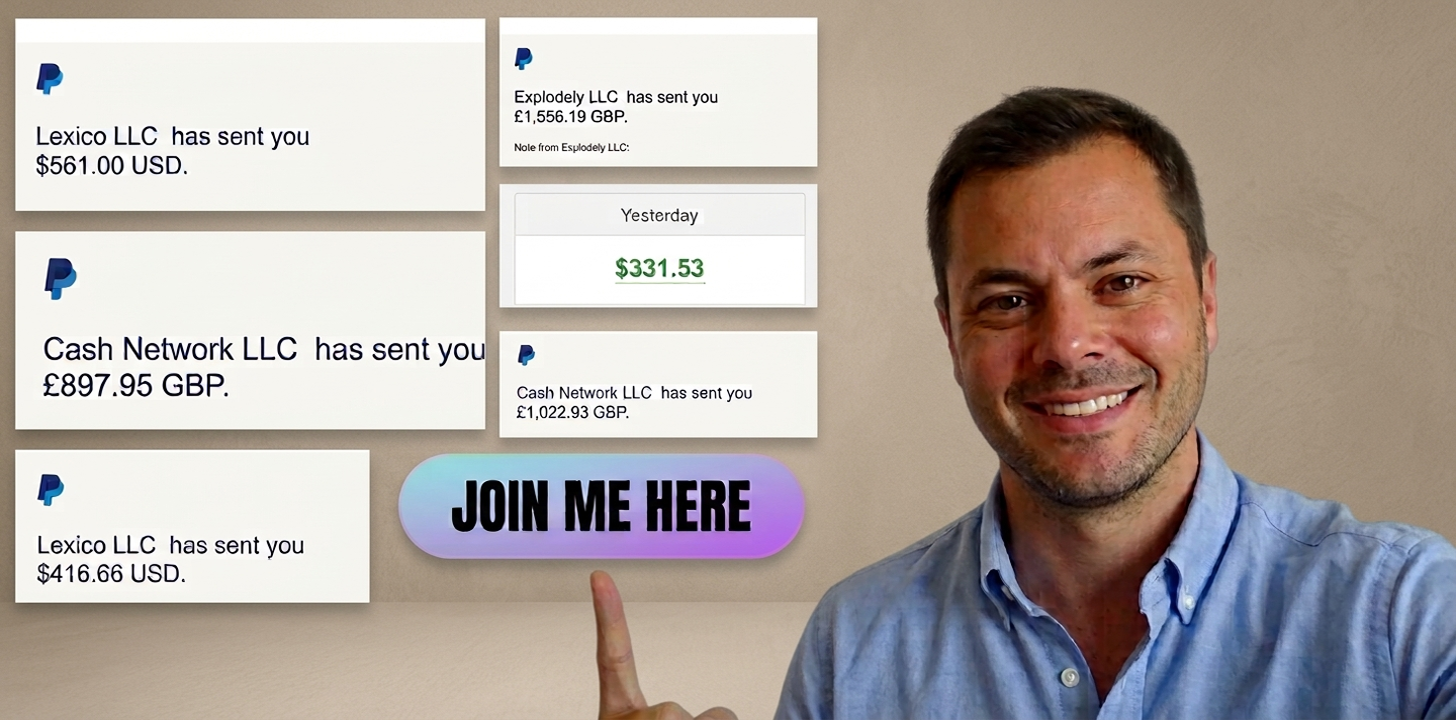
But I need you to do one thing to make sure you receive my email later !
I need you to whitelist my email address and add it to your contacts.
Please make sure you add my email to your contacts:
alex@alexaireview.comFollow these simple steps for GMAIL on your computer:
Add or move contacts
You can save names, email addresses, phone numbers, and more in Google Contacts.
Contacts saved to your Google Account will sync with Google Contacts and all your Android devices.
Add a contact
- On your computer, go to Google Contacts .
- At the top left, click Create contact › Create a contact or Create multiple contacts .
- Enter the contact’s or contacts’ information.
- Click Save .
Follow these simple steps for GMAIL on your Mobile:
Add or move contacts
You can save names, email addresses, phone numbers, and more in Google Contacts.
Contacts saved to your Google Account will sync with Google Contacts and all your Android devices.
Add a contact
- On your Android device, open the Contacts app 👤.
- At the bottom right, tap Add ➕.
-
Enter the contact’s name and an email or phone number.
- To add more name details: Tap Add fields , then tap the field type you want to add.
- To add a photo: At the top, tap Add picture . Capture or select a picture, then tap Choose .
- To customize how your contact appears on calls in the Phone app 📞: Add a calling card.
- To enter more information, like a street address or notes: Tap the field to edit, or tap Add fields to add another type of field.
- When you’re finished, tap Save .
If you don't do this you won't receive what I have for you!
Reply to my email and say "DONE" when you've completed this and I'll get it over to you as soon as possible.